 Digital Front Desk
Names nobody can read
A rushed scrawl with a pen on a string. When you need to call someone's company, you are guessing.
How it worksFor plants, warehouses and food processors
A tablet at the gate or shipping office replaces the paper book. Each person answers your questions, the host they pick can get a text or an email, and the front office sees a live list of who has signed in and who has signed out.
Rather look on your own? Try it free. Not ready? Download the free contractor sign-in sheet.
At the gate
In the tablet's browserWelcome. Please sign in.
Contractor sign-in
Illustration. Your site chooses the questions.
Why the paper book lets you down
These are common problems with paper sign-in, the kind most sites will recognize.
A rushed scrawl with a pen on a string. When you need to call someone's company, you are guessing.
How it worksPeople leave by another door or forget. By afternoon the book says the contractor from this morning is still here.
Drills and emergenciesDuring a drill, the sign-in book is often still on the desk in the building everyone just left.
An honest note on the rulesOne site, on a paid plan. Ask for one and we reply within one working day to agree the details.
How it works
Name, company and who they are here to see, plus the questions you set, such as acknowledging the site rules or confirming the PPE an area requires. Staff download the answers with the visitor log, as a CSV file with a column for each question answered.
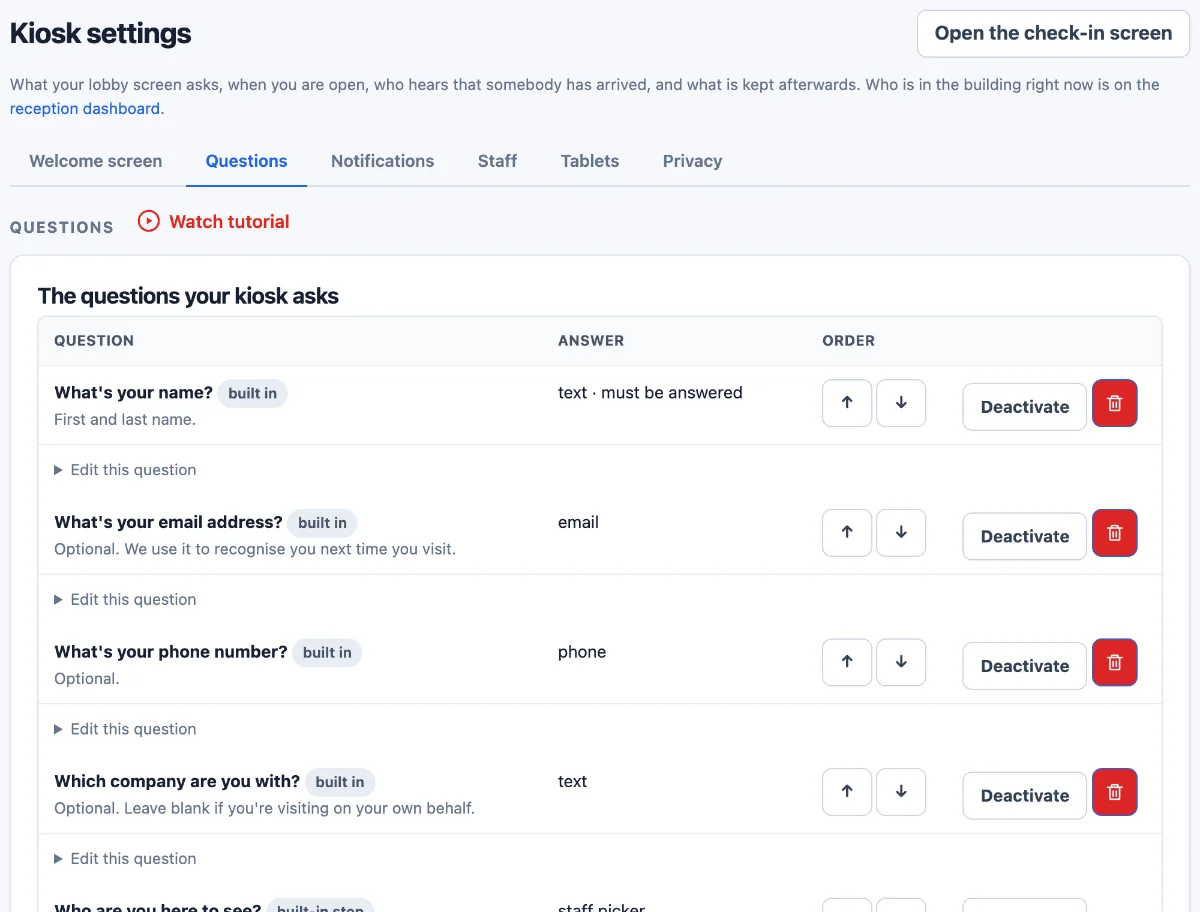
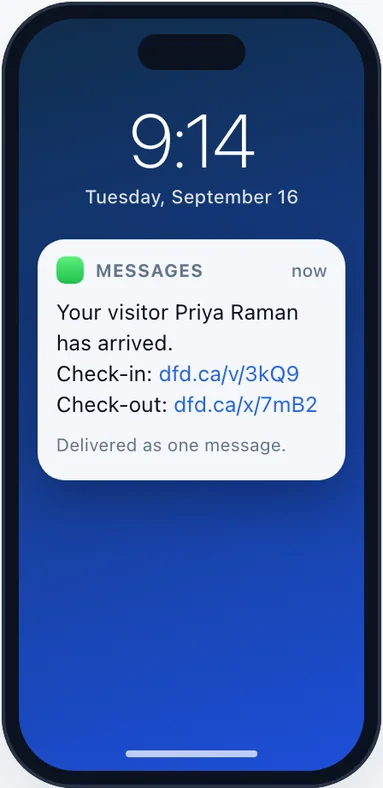
When a visitor picks their host from your staff list, and you have set that host up for alerts, the host gets an arrival text or email. A message can be delayed or fail to arrive, so keep a way for the gate to phone the host.
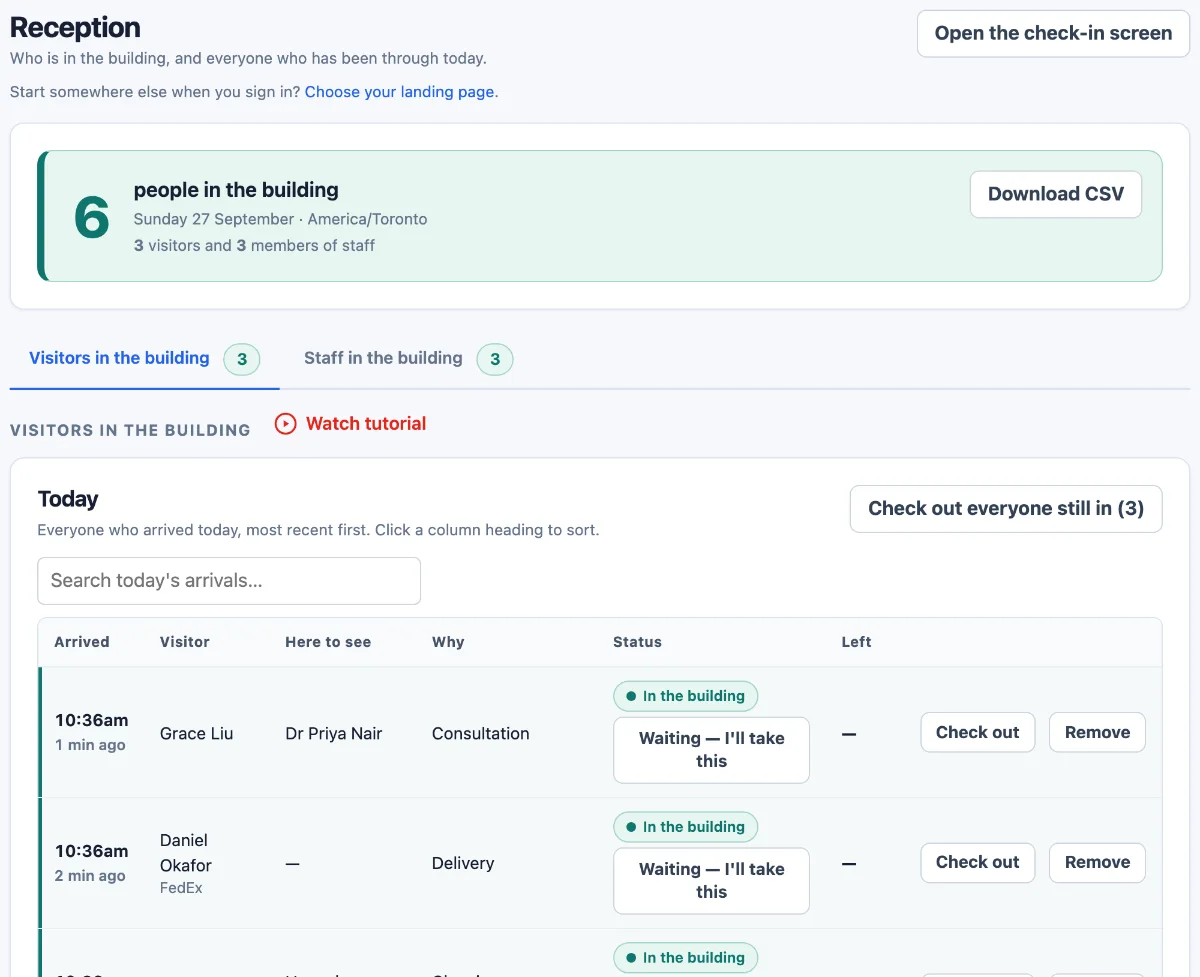
The front office sees who has signed in and who has signed out. Staff signed in to your account can open the same list on a phone, as long as the phone has a connection.
At a glance
Each tablet is connected with its own one-time code, and all of them feed the same live list and visitor log.
The most one account can connect
Per site, not per tablet
From the gate to the front office
To try it free, on your own
An honest note on the rules
Visitor and contractor sign-in is good practice rather than a general legal requirement for these sites. Where a rule touches it, it is the emergency action plan.
"An emergency action plan must include at a minimum: […] (4) Procedures to account for all employees after evacuation;" OSHA 29 CFR 1910.38(c)(4), osha.gov. A United States rule, quoted as a widely used reference point. It applies where another OSHA standard requires an emergency action plan (1910.38(a)).
A list of who has signed in is one input to that procedure. It only knows about people who signed in, and it cannot tell you where anyone is. Keep your roll call; the list tells the person running it who else to look for. Your own provincial rules and your plan are what apply to you. Not legal advice.
Free templates
Word, Excel and PDF. Free, no sign-up. Use them as they are or as the fallback sheet beside the tablet.
A sign-in sheet for contractors arriving at a plant or warehouse.
Not legal advice. Last checked 7 October 2026 against OSHA 29 CFR 1910.38(c).
A visitor log for a single-site plant or warehouse.
Not legal advice. Last checked 7 October 2026 against OSHA 29 CFR 1910.38(c).
A checklist for the site orientation a contractor gets before starting work.
Not legal advice. Last checked 7 October 2026 against OSHA 29 CFR 1910.38(c).
A roll-call sheet for the assembly point after an evacuation.
Not legal advice. Last checked 7 October 2026 against OSHA 29 CFR 1910.38(c).
Pricing
In Canadian dollars. Your own questions, such as site rules or PPE, start at Practice.
A single reception desk.
CAD per month, billed monthly
$55 a month billed annually
A clinic, firm or office with a full team.
CAD per month, billed monthly
$96 a month billed annually
A care home, campus or multi-building site.
CAD per month, billed monthly
$319 a month billed annually
Prices in CAD, per site, per month. Prices exclude tax.
One site, on a paid plan. Ask for one and we reply within one working day to agree the details.
Questions
Straight answers, including the things the tablet does not do.
Yes, as your own questions, which start at Practice. Add one such as "I have read the site rules", give it a single answer to tap and mark it as one that must be answered: nobody finishes signing in without it. A question and its hint hold a sentence or two each, so the rules themselves stay posted at the gate or on your handout.
Staff download the answers with the visitor log, as a CSV file with a column for each question, beside the name and the time. The tablet records a tapped answer, not a handwritten signature.
No. It does not collect documents, check certificates or track expiry dates. It records the answers to the questions you ask, so you can ask a contractor to confirm that their clearance and insurance are on file with you, and staff can download that answer with the visitor log.
Checking stays with your people, and it is not a one-time job: WSIB says an Ontario clearance is valid for up to 90 days, and boards in other provinces, such as WorkSafeBC and WCB Alberta, issue clearance letters of their own.
No. The tablet does not play videos or mark a quiz. Give your orientation the way you do now, then ask a question that must be answered, such as whether they had it today and who gave it. The free contractor orientation checklist covers what to go through.
Yes, if you set it up for them. Make your first question why they are here, and set the driver's answer to skip the list of people to see and to finish once they have given their name. The front desk can be told it is a delivery during the opening hours you enter; outside those hours nothing is sent, and the tablet shows your hours and phone number instead.
Yes, as your own questions, worded the way your food safety program asks them. Each answer is kept with the visit and is in the CSV download. You can set an answer to tell the front desk that someone at the tablet needs them, during your opening hours. The tablet does not turn anyone away by itself: what happens next is your people's decision.
No. At the end of a sign-in the tablet shows a badge number on the screen, and the number is in the visitor log. If your site hands out passes, the number can go on the pass. Photos are off unless you switch them on.
As one input to your roll call, not as the roll call. The reception screen lists the people who have signed in and not signed out: visitors and contractors, and any staff who signed in with the QR poster. It has a Download CSV button for that list, and staff signed in to your account can open it on a phone at the assembly point, as long as the phone has a connection.
It cannot tell you where anyone is, and someone who never signed in is not on it. Keep your roll call and the free evacuation roll-call sheet; the list tells the person running it who else to look for.
There is no sign-out button on the tablet; it is a sign-in screen. Staff sign people out from the reception screen, and a host who got an arrival text or email can tap the check-out link in it. Anything still open from an earlier day closes automatically overnight, marked as closed automatically, with no departure time made up.
Until then, a contractor who left by another gate still shows as signed in. That is why the list is something to check during a drill, not a count to trust.
Visitor and contractor sign-in is good practice rather than a general legal requirement. Where a rule touches it, it is the emergency action plan: the US OSHA wording is quoted above, and it applies only where another OSHA standard requires such a plan. For a Canadian site, check with your province's occupational health and safety regulator, and follow your own emergency procedures. Not legal advice.
Yes, in every plan. Print the QR poster from the settings page and put it at the entrance. Staff scan it with their own phone, pick their name the first time, then tap to sign in or out, and they count in the list of people signed in. They need to be on your staff list.
It records who signed in or out and when, and keeps that history. It does not use the phone's location or add up hours for payroll, and whether you use it at all is your choice. If you do, explain to your crew what it records and why before the poster goes up, and in Ontario check whether your written policy on electronic monitoring should mention it.
In Canada. The application, its database and its files are in Microsoft Azure's Canada Central region. Arrival texts are carried by Twilio in the United States and arrival emails are sent through Zoho Mail in Canada. If you switch on ID scanning, or follow-up questions picked from your own list, that reading is done by Azure OpenAI in Microsoft's US data zone. The sub-processors page lists who receives what, and where. For a site in Quebec: Canada Central is not in Quebec, and Quebec's privacy law has its own rules for personal information held outside the province.
Staff signed in to your account. Your site decides what the tablet asks and how long what people typed is kept: keep it, clear it after a number of days you set, or clear it once the visit is over. Setting your own retention rules starts at Practice.
Photos and ID scans are off unless you switch them on. An ID's picture is not kept unless you choose to keep it, and a kept photo is deleted after the number of days you set. Arrival texts can include the visitor's name; one setting turns that off. Staff can erase a person's sign-in from the visitor log when asked; their name and contact details are cleared once no other visit of theirs is left on it.
A visitor who gives a phone number or email is also added to your account's contacts list, unless you switch that off on the Privacy tab or ask their permission first with a question of your own. Neither your retention setting nor erasing a sign-in clears the contacts list.
We cannot promise that. SQF and BRCGS are certification standards, and CTPAT and Canada's Partners in Protection are voluntary customs-security programs; none of them is a law, and each sets its own requirements, which your certification body or program checks. Read the standard's own text on visitor and contractor control, and ask your auditor.
What the tablet gives you is a dated record of each sign-in: name, company, who they came to see, when they arrived, when they left where a departure was recorded, and the answers to your questions. Staff can download it as a CSV file to show an auditor. The tablet never shows the log, or anyone else's sign-in, to the person signing in.
A tablet with a web browser, a stand or case, power and a connection. The sign-in screen is a web page, not an app, and you supply the tablet; we supply the software. Contractors and visitors do not need a smartphone: they sign in on the tablet, and their own phone is not involved.
That depends on the tablet and where you put it, because the hardware is yours. The screens are built for someone standing up: one question per screen, a large box and a large button. Many work gloves do not register on a touchscreen, so put the tablet where people can take a glove off, or keep a stylus beside it. For an outdoor gate or an unheated gatehouse, check the tablet maker's operating temperature range against your winters: Apple, for example, rates the iPad for 0 to 35 °C. Put it in a heated, covered spot or an enclosure.
Yes. Each tablet is connected with its own one-time code, and all of them feed the same live list and visitor log. The log does not record which tablet someone used, so if that matters, add a question asking which entrance they came in by. The price is per site, not per tablet, and the pilot request asks how many entrances you have.
Not fully. The tablet's buttons and built-in screens are in English. The questions are yours, so you can write them in French or in both languages, but the rest of the screen stays in English.
The tablet needs a connection to sign anyone in; it does not store sign-ins and send them later, and the list on a phone needs a connection too. If the connection drops, use paper until it is back. Keep the free contractor sign-in sheet at the gate anyway, for the day the tablet is charging.
A tablet, a browser and your list of hosts and questions. Add staff one at a time or upload them as a CSV file from a spreadsheet, and connect the tablet with a one-time code from the settings page. We walk through it with you on the demo call. You can try it free on your own, or request a paid pilot and we set it up with you.
One monthly price per site, in Canadian dollars before tax, set by the plan that fits your staff count: Starter for up to 20 staff, Practice for up to 50 staff and Campus for up to 500 staff. Visitors and contractors are not counted. Your own questions, such as site rules or PPE, start at Practice. The prices are in the pricing section.
You can try it free on your own, with no card. Or ask for a paid pilot: one site at the catalog price, set up with you, with a named owner at your site and a start date you propose. Sending the request bills nothing.
Book a demo or a paid pilot
Tell us about your site. We will show you the contractor sign-in, the host message and the live list. Asking for a paid pilot? Tell us who at your site will own it and when you would like to start.
Rather look on your own first? Try it free.